How to Remove the old CRU15 Printer(s) from your System
1. Open the Start Menu
2. Open your Settings
3. Click on “Devices”

4. Click on “Printers & scanners”
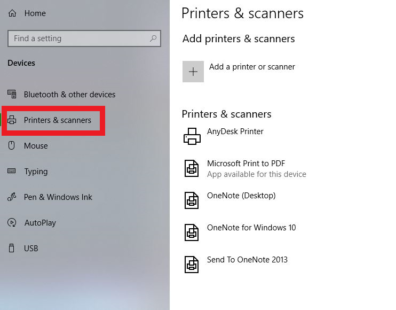
5. Find the old printer from CRU15
The printer name should be followed by “on cru15.ad.wsu.edu”
6. Click on the printer and then “Remove device”

7. If prompted, click on “Yes” to confirm removal of the device.